Resources
Notification Settings
Manage notification settings for the organisation.
To access this page select Settings in the navigation bar and then Notification Settings on the following page:
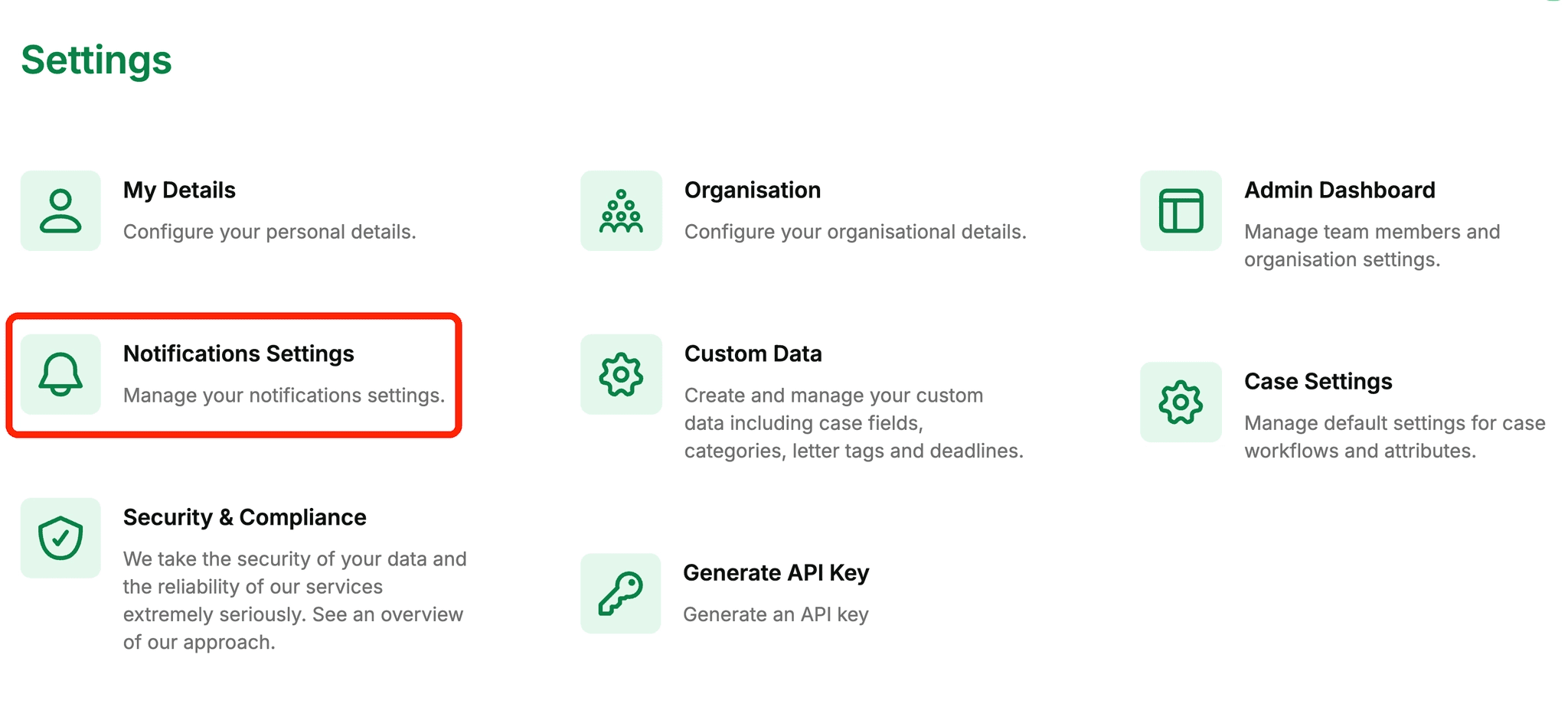
Only an Admin can access the Notification Settings.
Managing Notifications
Changes here take effect for all users in your organisation’s account.
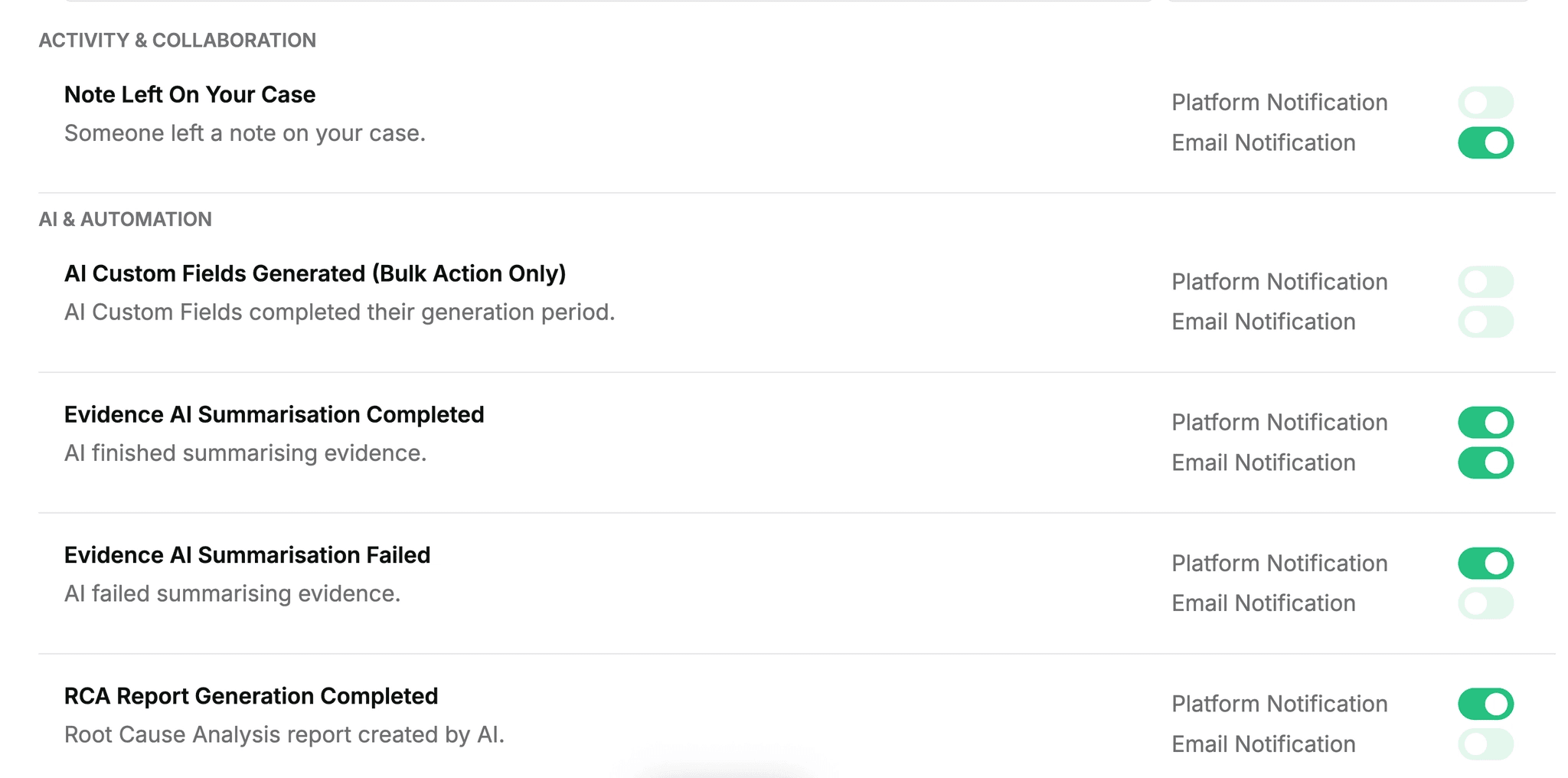
From this page you can see a list of all the platform alerts you can configure. For each alert you can choose whether every user receives a platform notification, email notification, or no notification at all.
Notification Types
There are two possible notifications you can enable for each alert:
Platform Notifications
These are notifications that are displayed via the bell icon at the top right of the screen. The icon will display the number of unread notifications in red. You can then click on the bell to view a list of the notifications you’ve received, along with a time and date.
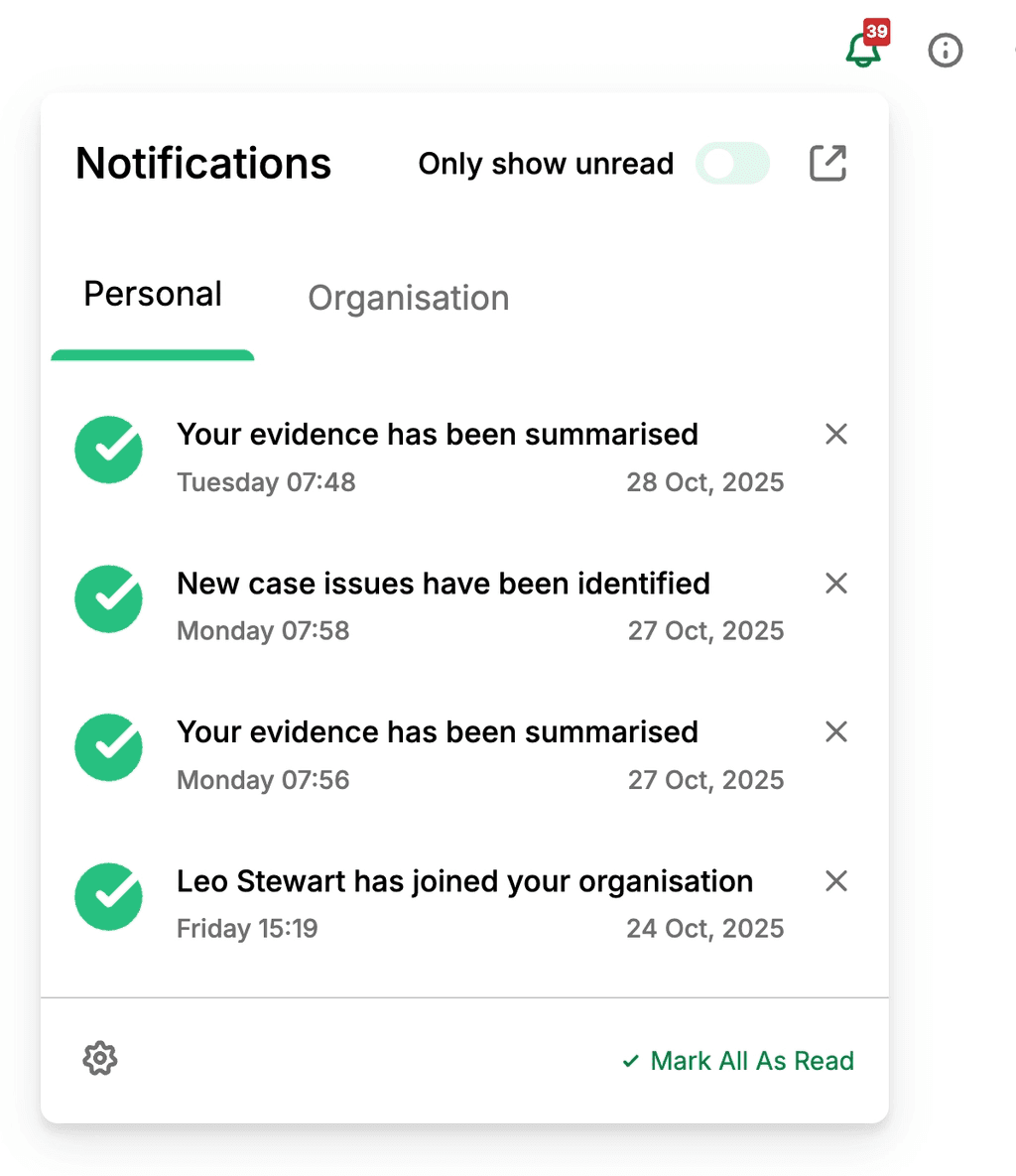
You can click on the notification to read it, or click Mark All As Read. Additionally, you can delete any notification by clicking the X beside each alert.
Email Notifications
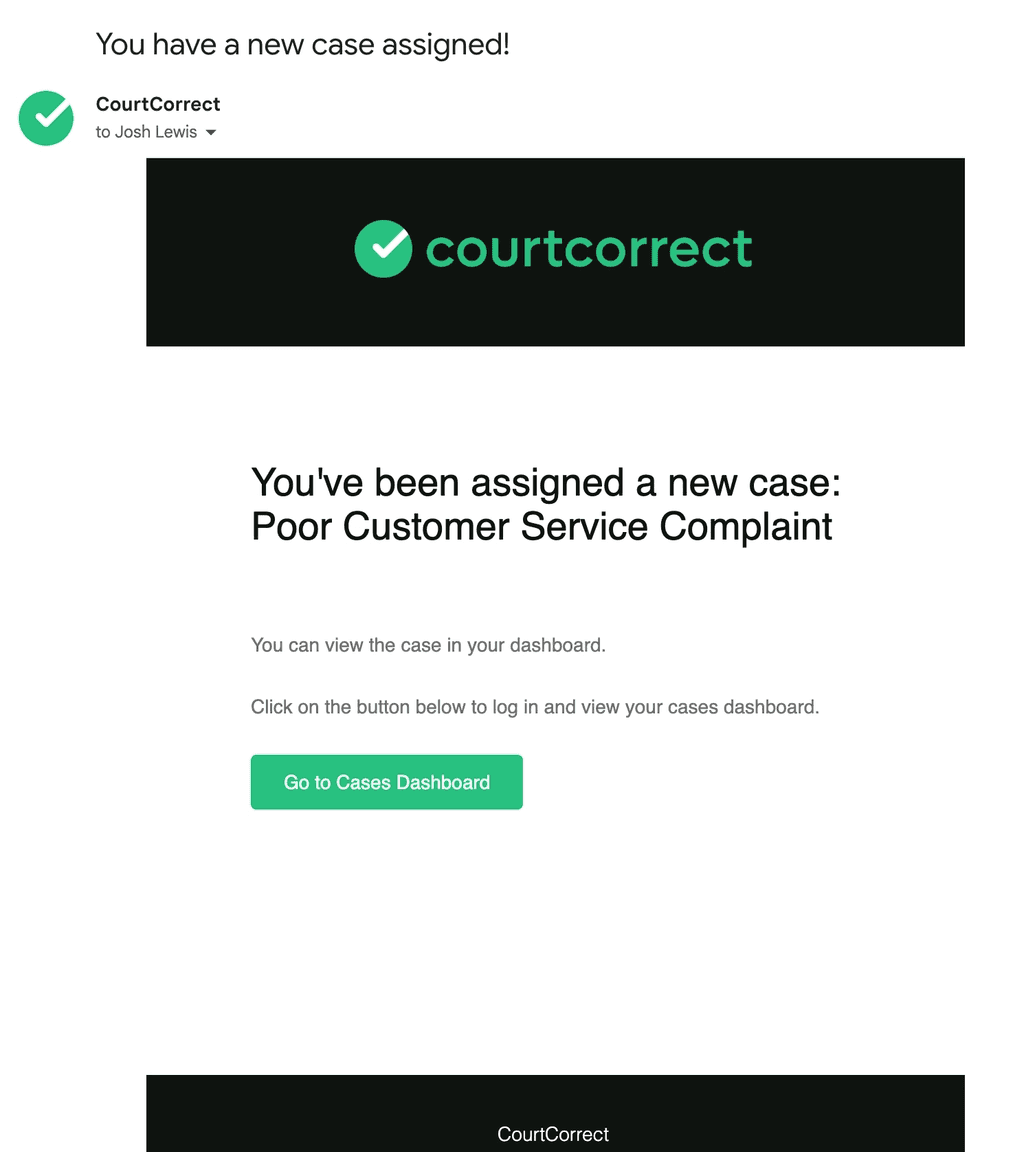
These are emails sent each time an alert is triggered. This option can be especially useful for tasks and deadlines, since you can have an email when new tasks and deadlines are assigned to you, and when they are coming close to being due, or even overdue.
If you prefer to have no notifications for a particular alert, just disable the platform and email notification options.